Participation Guide
Preparation
1. Create a VRChat account.
https://hello.vrchat.com/
https://hello.vrchat.com/
2. Create a Steam account.
https://store.steampowered.com/join/?l=japanese
https://store.steampowered.com/join/?l=japanese
3. Launch Steam and install VRChat.
4. Launch VRChat and confirm you can log in with your VRChat account.
On the Day
1. A venue access URL will be sent to the email address used for your reservation.
2. Open the access URL in your browser.
3. If VRChat is not running, press the "Launch World" button. If it is already running, press the "Invite Me" button.
- Pressing "Launch World" will launch VRChat and automatically take you to the venue.
- Pressing "Invite Me" will send you an invitation to the venue. Accept it by pressing the checkmark to be moved there.
Venue access URL confirmation email
4. Climb the stairs on the right side of the building and check in with your reservation name at the reception desk.
Entrance
5. Take a seat of your choice.
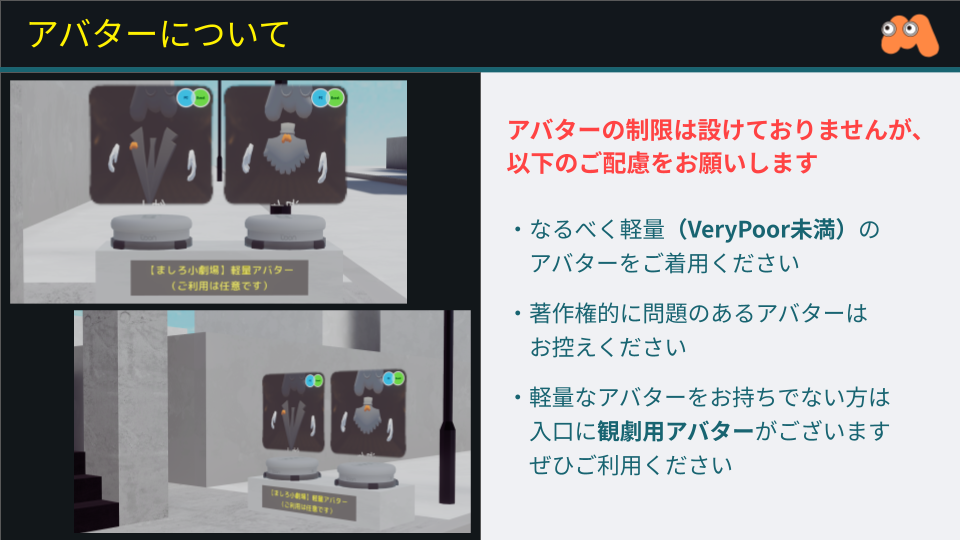
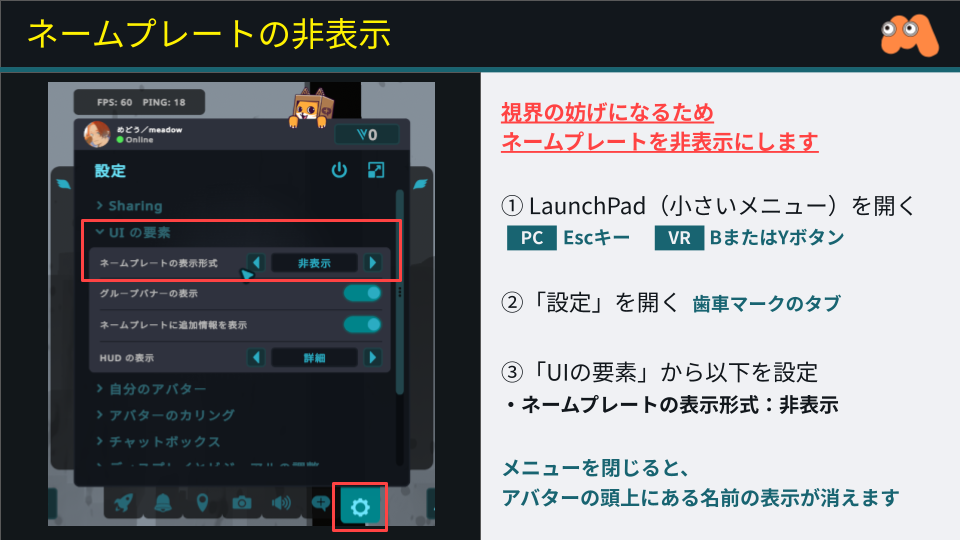
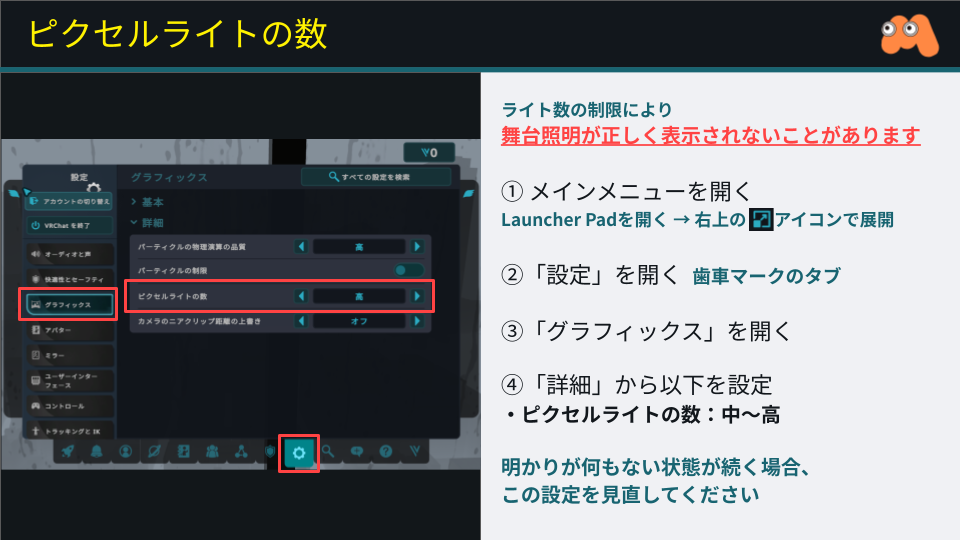
6. Instructions for settings are posted at your seat. Please complete the setup before the performance begins.
Rendering Settings
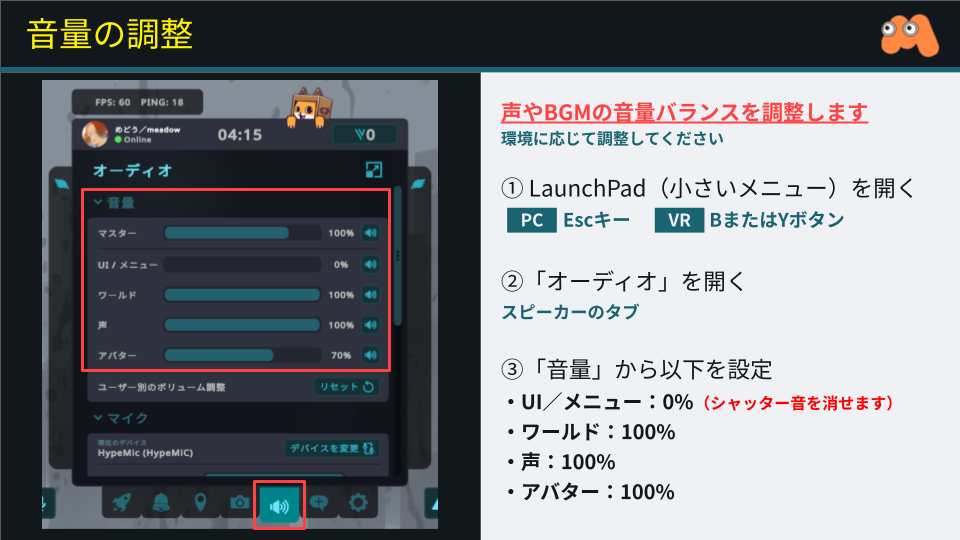
Audio Settings
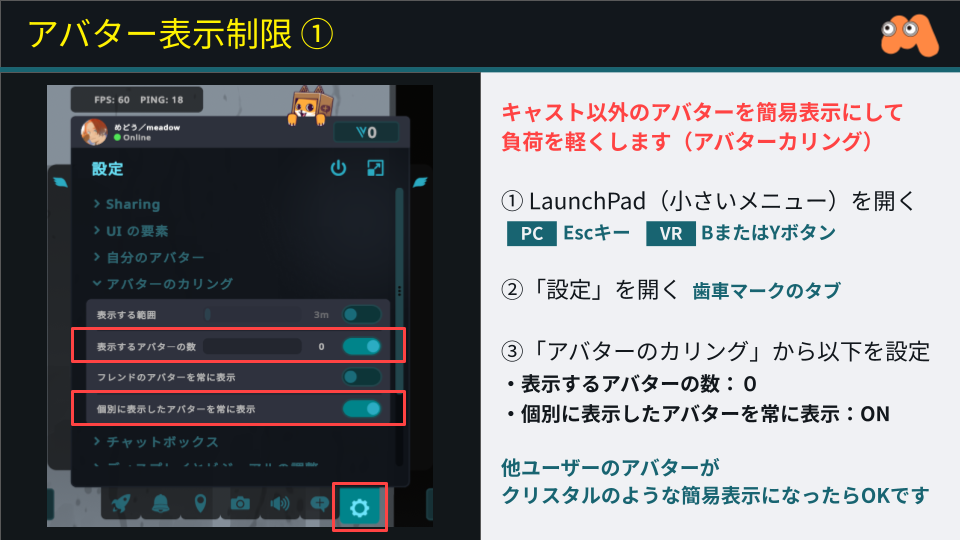
Avatar Display Settings
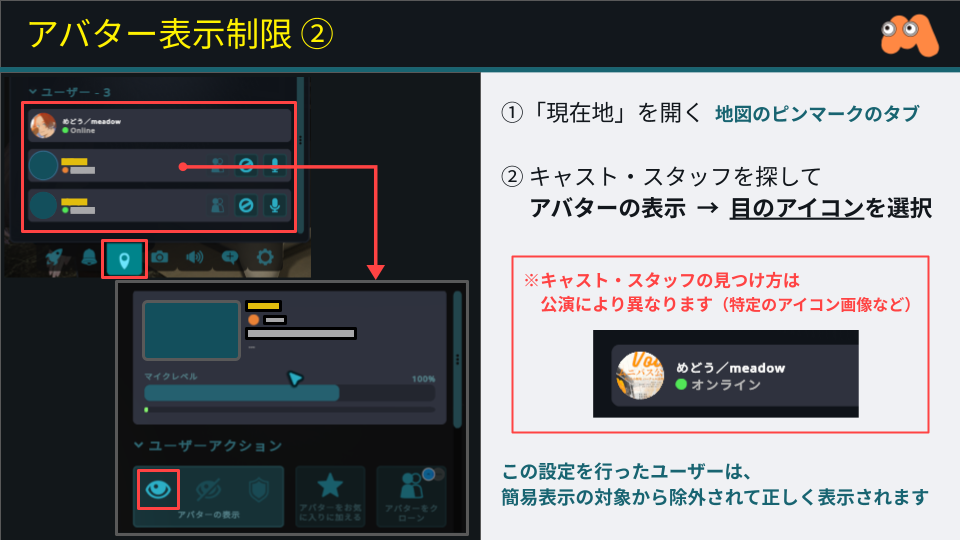
Reduces avatar quality for everyone except cast and staff.
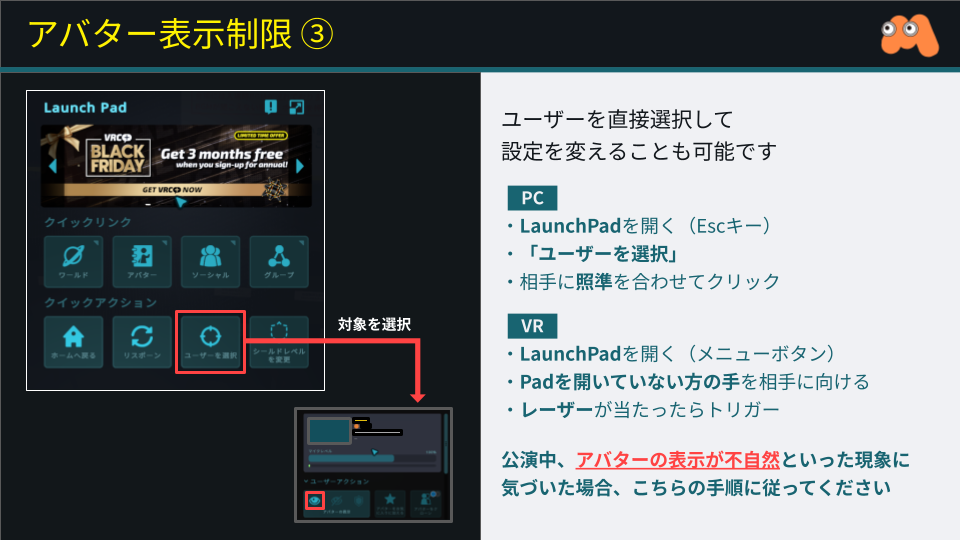
Also configures cast avatars to display correctly.
Strongly recommended for a comfortable viewing experience.
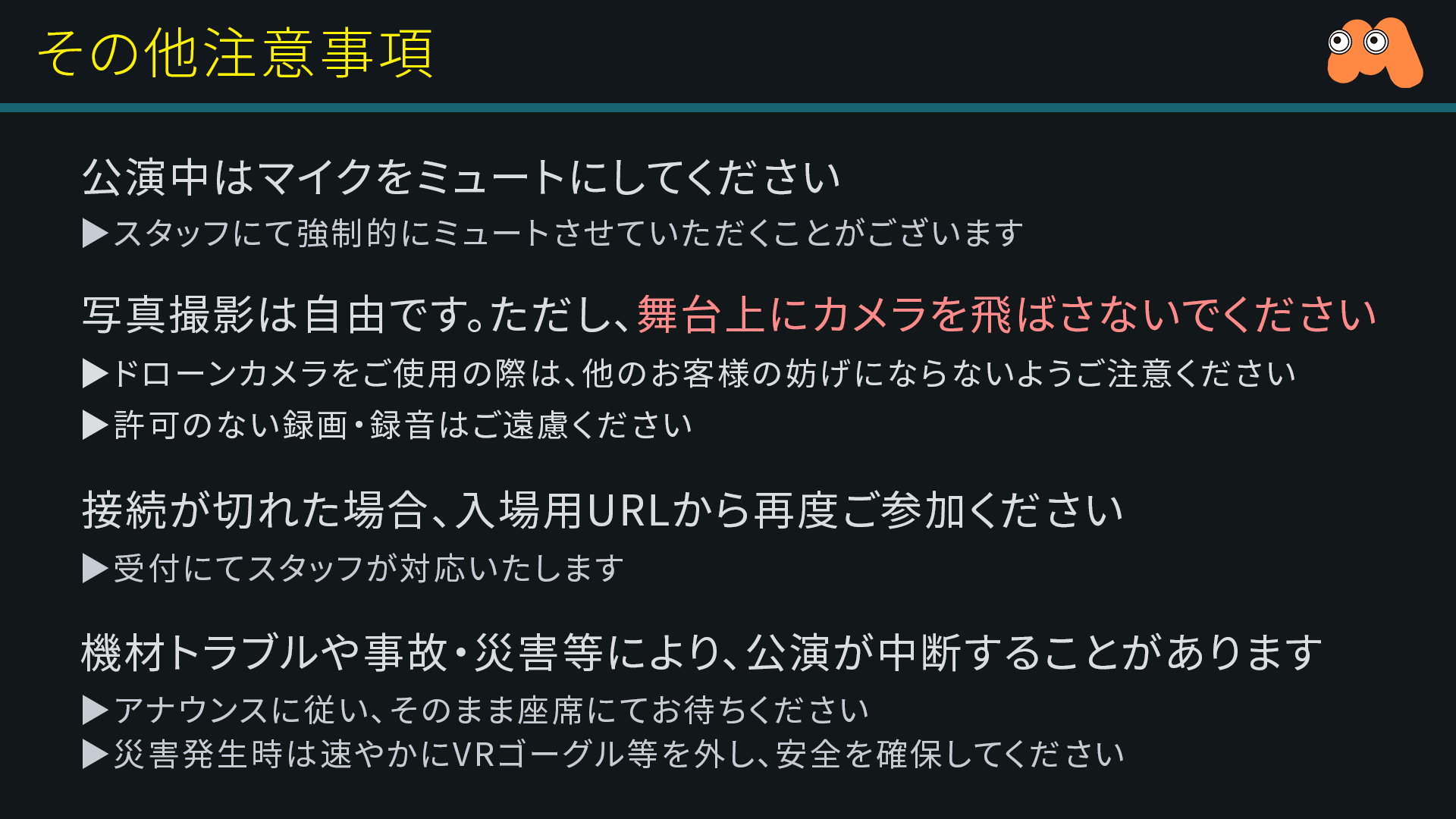
Other Notes