
Advanced Usage
Merging Scenes
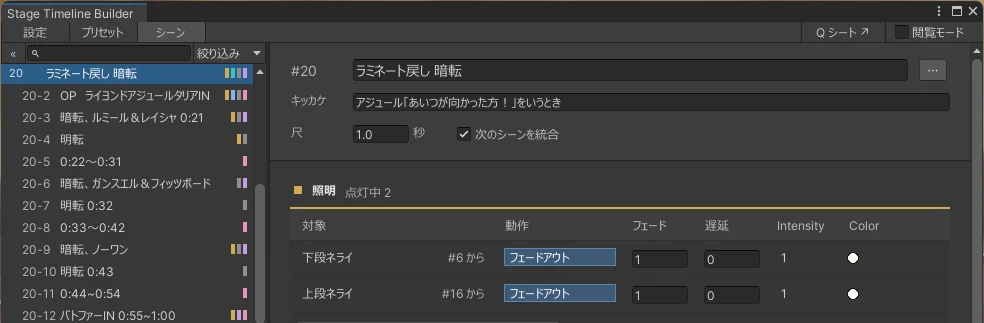
When you turn on "Merge Next Scene" (「次のシーンを統合」), the next scene starts without pausing at the end of the current scene.
It is effectively treated as a single scene together with the next one, so the next scene is shown in the list as, for example, "2-2."
Use this when you want to both start and end an effect within one scene, or when you want a single cue to trigger a longer effect.
Setting the Scene Duration
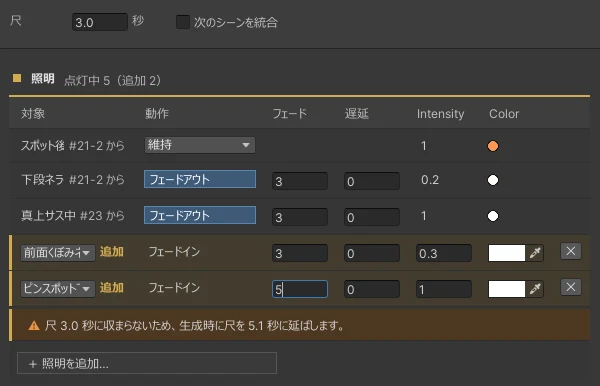
You can specify the length of a scene in seconds by entering a "Duration" (「尺」).
For example, when merging scenes, you may need to set a duration to adjust the timing of each effect after the merge.
Note
If "Delay + Fade" exceeds the duration, the scene duration is extended automatically. A warning appears below each item that exceeds the duration, so adjust them individually.
Dividing into Acts and Sections
You can insert "Act" (幕) and "Section" (場) dividers into the scene list.
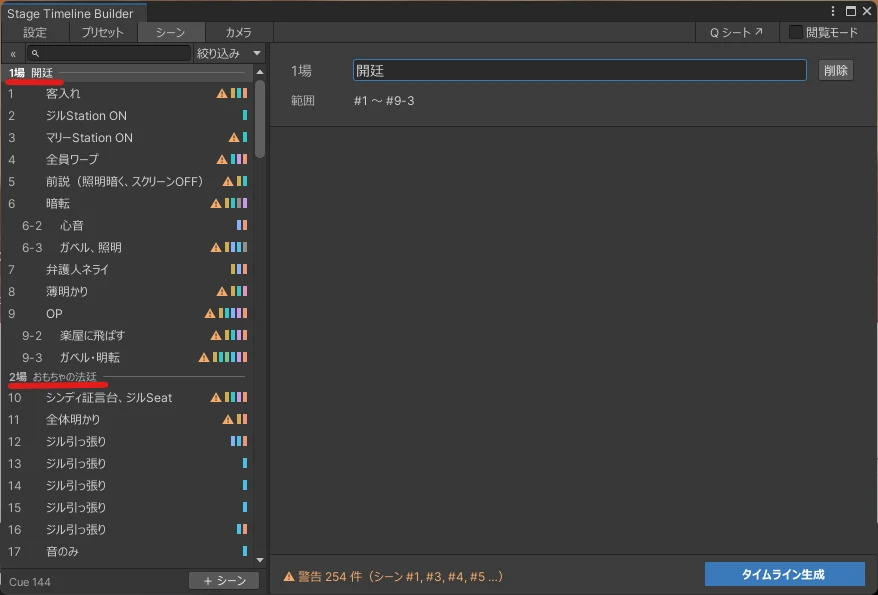
They don't affect the generated timeline, but act and section dividers are reflected in the cue sheet (Q-sheet) / transition table (described below).
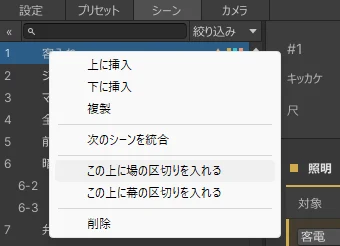
To insert a divider, right-click a scene and choose "Insert section divider above" (「この上に場の区切りを入れる」) or "Insert act divider above" (「この上に幕の区切りを入れる」).
Click a divider row to enter its name on the right. You can also drag divider rows to move them.
Numbers are assigned automatically. Acts are numbered consecutively throughout, and sections restart from 1 each time the act changes.
Cue Sheet / Transition Table Mode
Press [Q Sheet ↗] (「Q シート ↗」) at the top right of the window to open the cue sheet / transition table in a separate window. Use the tabs at the top left of the toolbar to switch views.
- Cue sheet (「Qシート」): Lists one cue per row so you can review the effects for each cue.
- Transition table (「遷移表」): A table that visualizes how the state of each effect changes from scene to scene.
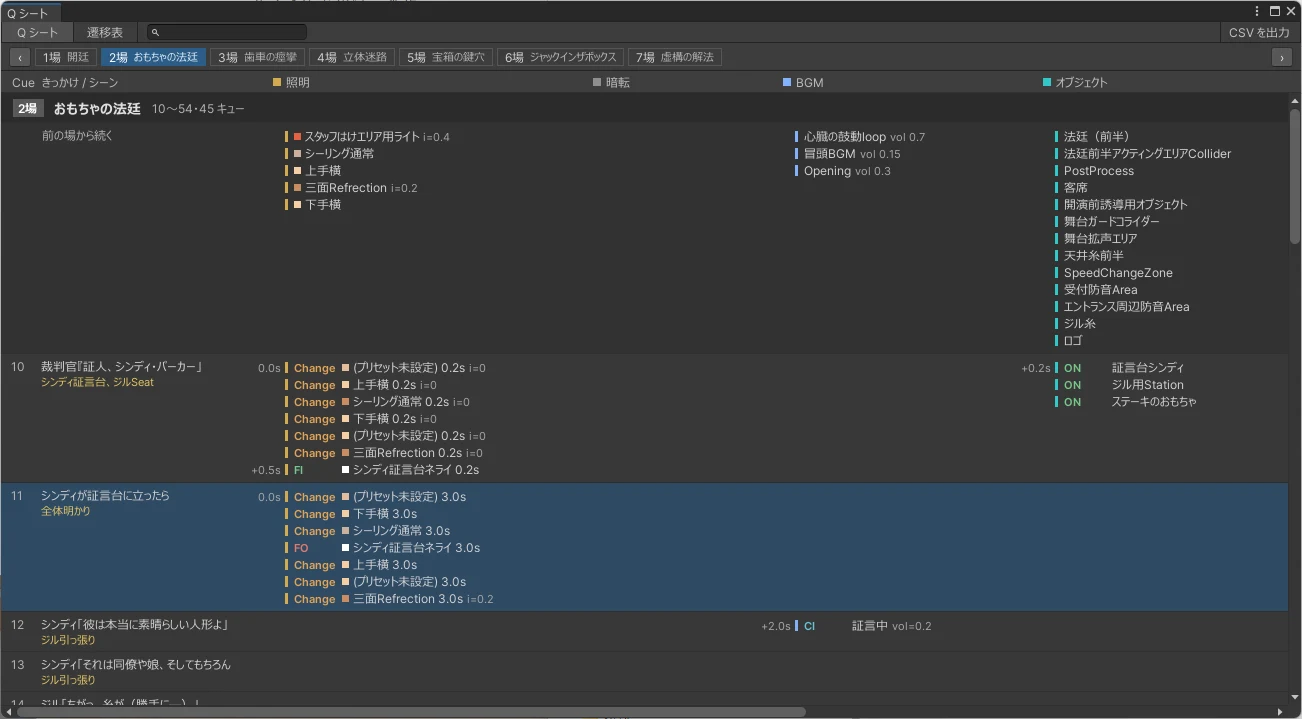
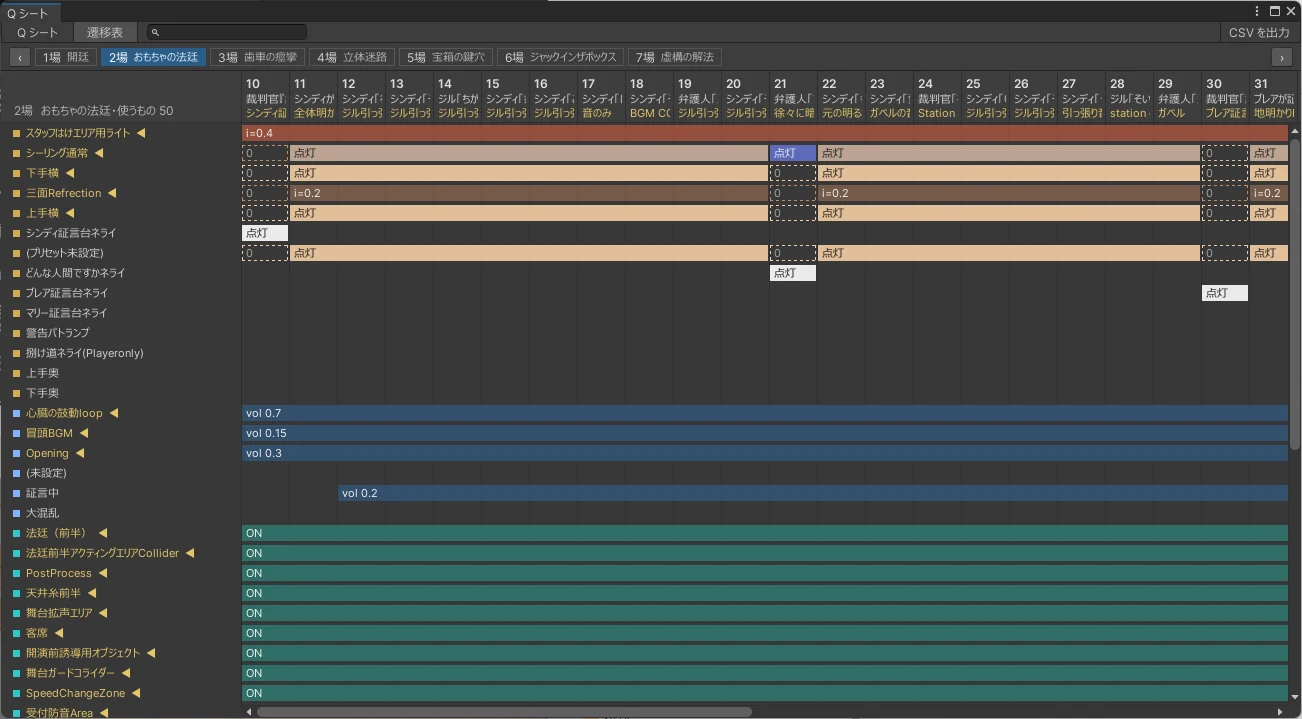
If you've inserted act or section dividers, the pages are split at each divider. Click a row to select that scene in the Timeline Builder.
You can also press [Export CSV] (「CSV を出力」) at the top right to export the cue sheet in a format that can be opened in Excel or spreadsheet apps.
Restoring from a Backup
The contents of the Config are backed up automatically, for example when generating the timeline.
In the Settings (「設定」) tab, choose the backup you want under "Backups" (「バックアップ」) and press [Restore This Backup…] (「このバックアップに戻す…」) to return to the contents at that point. To save a backup at any time, press [Back Up Current Contents] (「いまの内容をバックアップ」).
Tip
Up to 20 of the newest backups are kept for each type; older ones are deleted automatically.
Reassigning Broken References
When you rearrange objects in your world, objects assigned to presets or effects may become unassigned (None or Missing).
In the Settings tab, under "Reassign References" (「参照の再割り当て」), press [Scan for Candidates] (「候補をスキャン」) to search for candidate targets based on names and hierarchy. Review the candidates and press [Assign All Candidates] (「候補をまとめて割り当てる」) to reassign them all at once.
We also take questions about the tools on the Mashiro Theater Discord server. Feel free to join!