Generating the Timeline
How to Generate
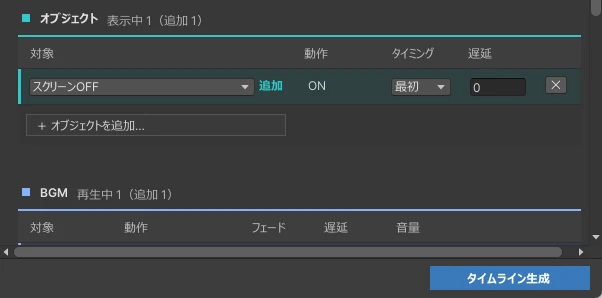
When you've finished creating scenes, press [Generate Timeline] (「タイムライン生成」) at the bottom right of the Scenes (「シーン」) tab. A Timeline is created and automatically assigned to the Timeline Manager.
Changes made after generating are not reflected until you press the button and generate again.
Checking the Result
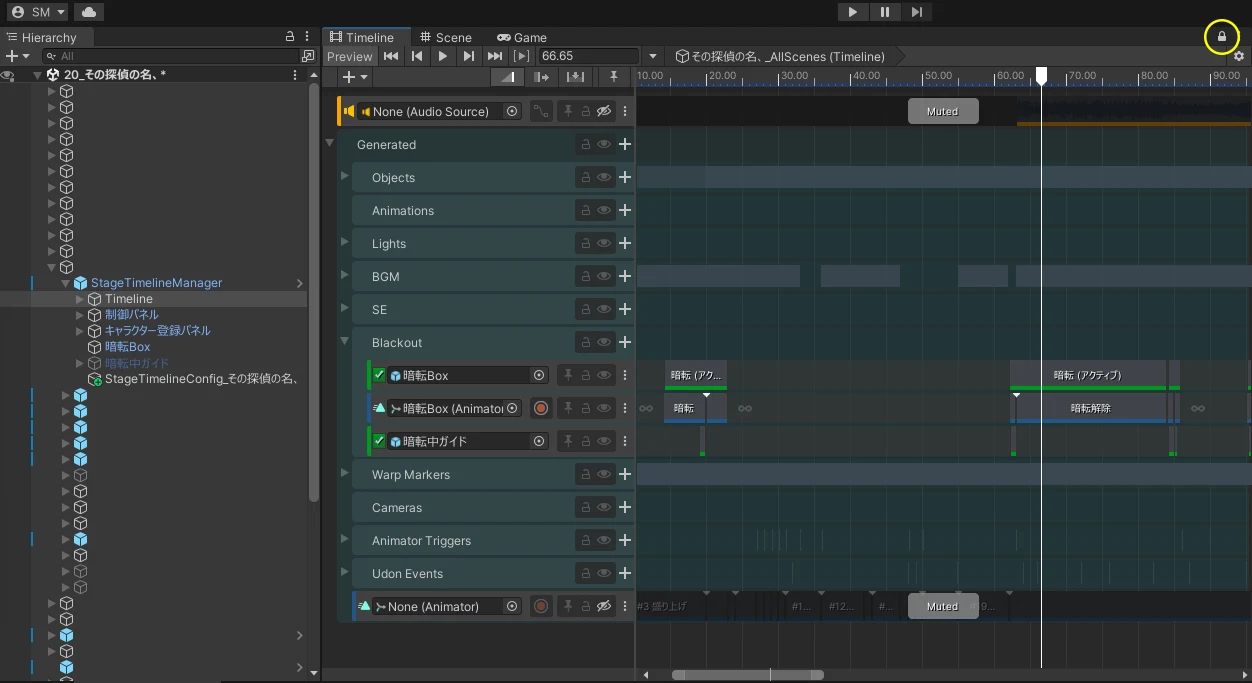
Select the timeline object in the Hierarchy, then open Unity's Timeline window to view the generated timeline.
Move the white playhead to see the effects change in the Scene view. Selecting another object releases the Timeline view, so we recommend locking it with the lock icon at the top right.
Note that some effects, such as animations and Udon gimmicks, only work in Play mode, so enter Play mode and operate the control panel directly to check them.
Tip
The parts generated by the Timeline Builder are placed inside the "Generated" group.
Tracks outside the "Generated" group are kept when you regenerate, so if you want to add effects that the Timeline Builder can't express, you can edit them manually. However, any edits made inside the "Generated" group are overwritten when you regenerate.
If You Can't Generate
Note
If you can't press [Generate Timeline], check the following:
- There is at least one scene.
- View Mode (「閲覧モード」) at the top right of the window is turned off.
If generation succeeds but some effects don't work, check the Unity Console. A yellow warning is shown for any effect that couldn't be output.
Even if you delete the generated files, the effect settings are saved in the Config. You can rebuild them by pressing [Generate Timeline] again.
Next Steps
In VRChat, you operate the generated timeline from the Timeline Manager.
We also take questions about the tools on the Mashiro Theater Discord server. Feel free to join!