
What Is StageTimelineTools?
Overview
StageTimelineTools is a set of tools and gimmicks that streamlines building stage effects for theater in VRChat and operating them live in VRChat.
You can manage all the effects a play needs in one place: moving set pieces on and off stage, switching lighting and sound, blackouts, playing animations, and more.
It consists of StageTimelineBuilder, a Unity tool for building effects, and StageTimelineManager, a gimmick that controls those effects in VRChat.
StageTimelineBuilder (Timeline Builder)
StageTimelineBuilder (Timeline Builder) is a Unity tool for creating stage effects for VR theater. Many of its features and terms are tailored to theater, but you can also use it for VR event production in general.
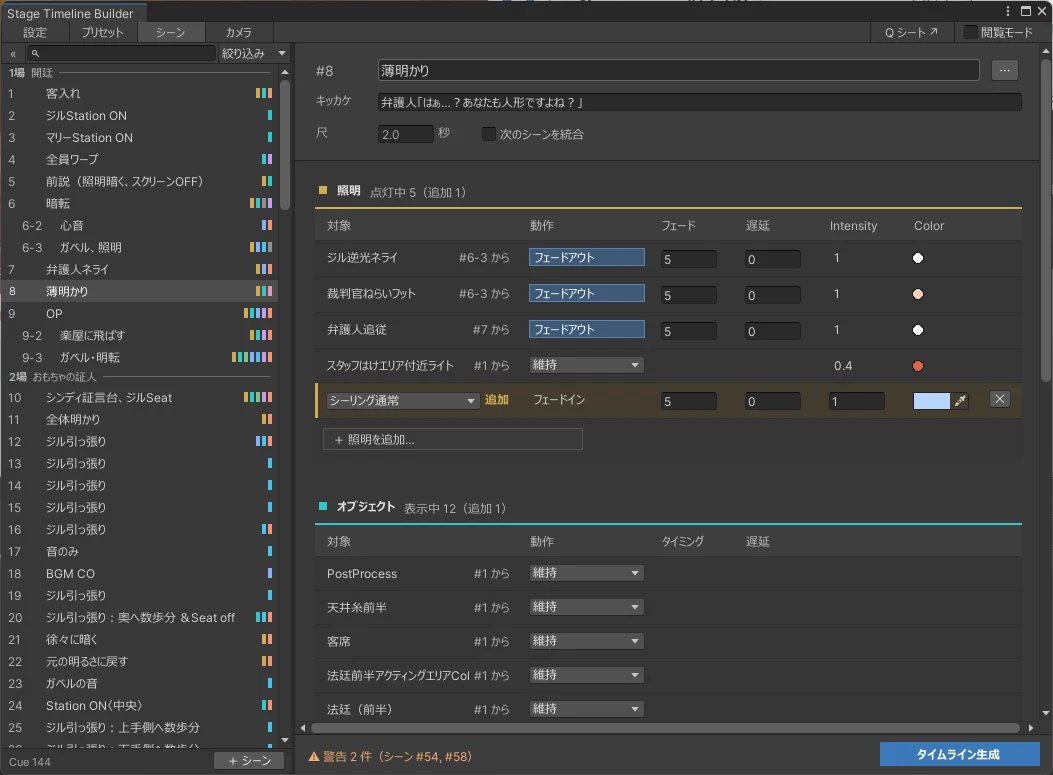
You divide the performance into "scenes" and set up lighting, sound, blackouts, objects appearing and disappearing, and so on for each scene. Once everything is set, a single button press automatically creates a Unity Timeline.
The created Timeline is automatically assigned to the Timeline Manager, so you can upload it to VRChat and use it as is.
The tool is split into a preset feature, where you register effects such as lighting and BGM, and a scene editing feature, where you enter the timing and cues for changing those effects. The scenes you create are output as a standard Unity Timeline.
StageTimelineManager (Timeline Manager)
A gimmick that controls Timelines created with the Timeline Builder inside VRChat.
The Timeline Manager knows where each scene ends: when you press the play button on the control panel, it plays only the next scene and then stops automatically. The operator runs the show by pressing the play button in step with the play, while watching the "scene name" and "cue" shown on the control panel.
It also includes features for rehearsal and debugging, such as pausing and skipping forward by seconds.
For details, see Running the Show.
Workflow
Creating scenes with the Timeline Builder follows these steps:
We also take questions about the tools on the Mashiro Theater Discord server. Feel free to join!