Adding Effects
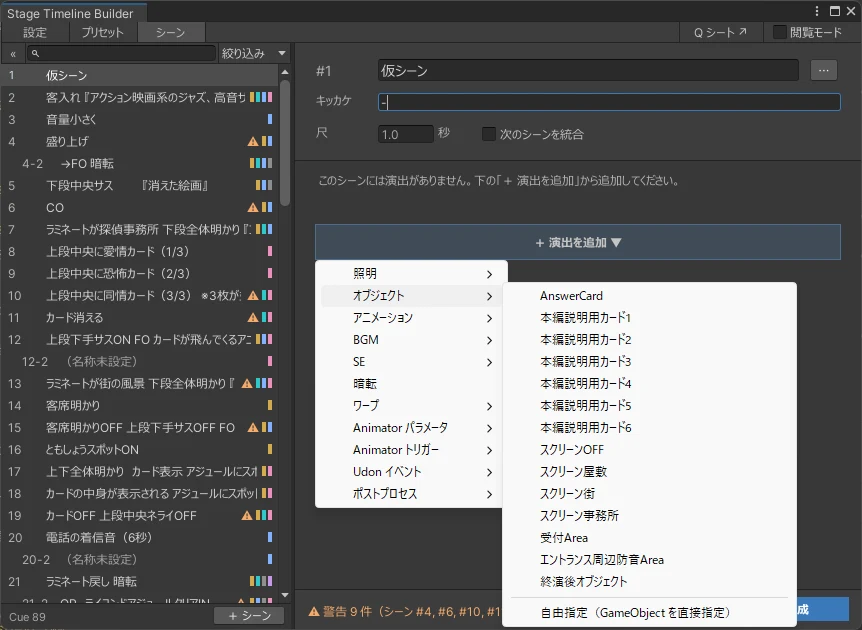
Adding an Effect
Press [+ Add Effect] (「+ 演出を追加」) at the very bottom to choose an effect type and a preset. To add something that isn't registered as a preset, choose "Custom" (「自由指定」) at the very bottom.
If the type has already been added to the scene, add more from the [+ Add ...] (「+ 〇〇を追加」) button below its table.
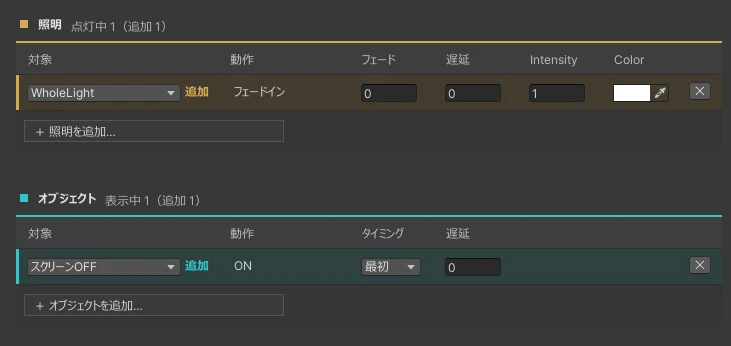
When adding an effect, in addition to the options available for each type, you can specify the following:
- Fade (「フェード」): Starts smoothly over the specified number of seconds.
- Delay (「遅延」): Starts the specified number of seconds after the scene begins.
- Timing (「タイミング」): Specifies whether the effect starts at the "Start" (「最初」) or "End" (「最後」) of the scene. With "End," you can't set a fade or delay.
Changing or Ending an Effect
When adding an effect, you need to think about both the scene where it starts and the scene where it ends.
Effects you add carry over to the next scene, except for one-shot ones such as SE and Animator triggers.
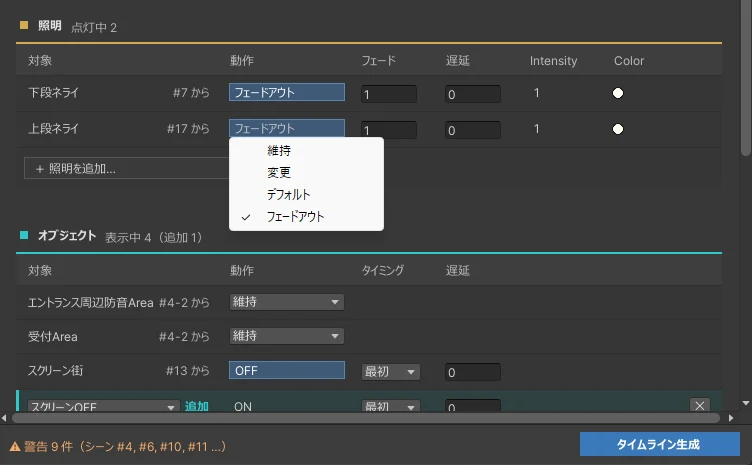
For a carried-over effect, you can specify an "Action" (「動作」). With the default, "Keep" (「維持」), it carries over to the next scene unchanged.
The available actions depend on the effect type.
- OFF / End (「OFF/終了」): Ends instantly.
- Fade Out / Release (「フェードアウト/解除」): Ends smoothly over the specified number of seconds.
- Default (「デフォルト」): Returns to the values set in the preset.
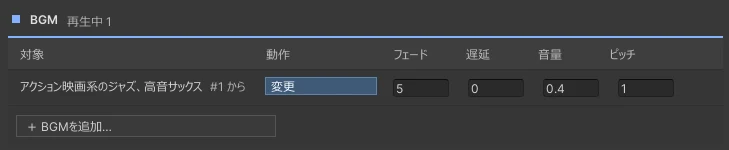
- Change (「変更」): Keeps the effect running while changing its values over the specified number of seconds.
As when adding, you can specify a fade and delay.
Tip
To end an effect within the same scene where it started, use the scene merging feature.
Type-Specific Options
BGM
When the action is set to "Change," you can specify a "Pitch" (「ピッチ」). The BGM's pitch shifts over the number of seconds specified for the fade.
SE / Animator Trigger
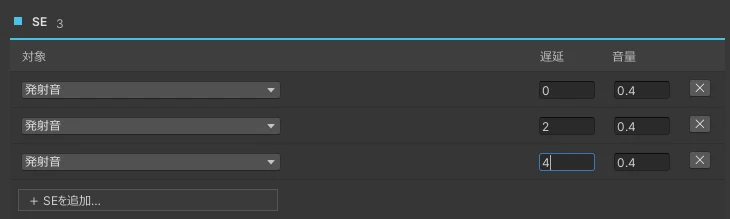
For these effects, you can specify the same target multiple times within a scene.
Tip
For SE, the previous playback is stopped before the sound plays again, so set a sufficient "Delay" based on the length of the audio.
If you want the same SE to play overlapping itself, set up multiple AudioSources and register them as separate presets.
Animation
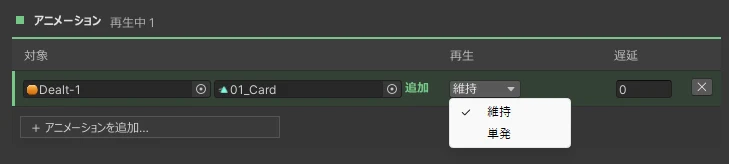
When adding, you can choose "Keep" or "One-shot" (「単発」). With One-shot, playback finishes within the scene and does not carry over to the next scene.
Special Effects
For blackouts and warps, see Blackouts and Warps.
We also take questions about the tools on the Mashiro Theater Discord server. Feel free to join!