
Running the Show
Overview
StageTimelineManager (Timeline Manager) is a gimmick that runs timelines created with the Timeline Builder inside VRChat.
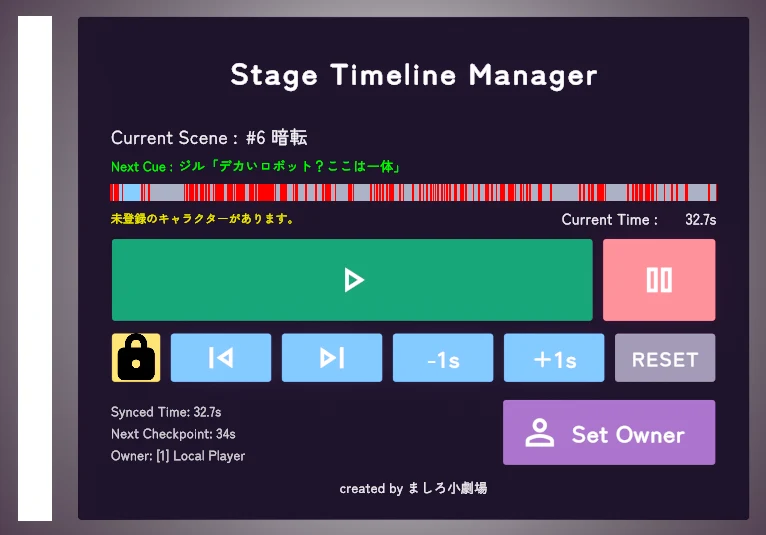
From the control panel, you can play and pause the timeline and move back and forth between scenes.
The panel shows the current scene name and the cue for moving on to the next scene. The operator works the controls while watching this.
Preparing for the Show
Choosing an Operator
Only the one person who is the "owner" can operate the timeline. Other players cannot press the buttons.
Whoever is in charge of operation should press [Set Owner] to become the owner.
Registering Actors
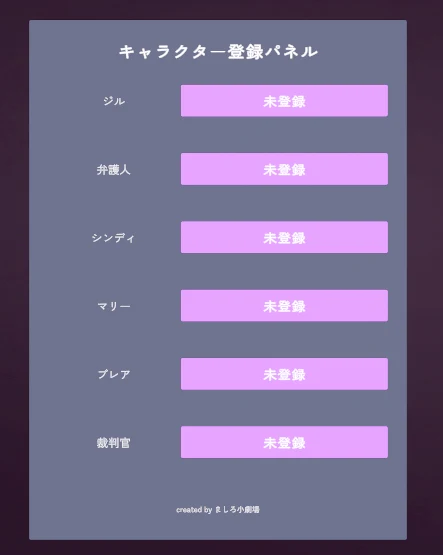
For performances that use warps, actors need to register their own roles in advance.
Press a role's button on the character registration panel to register your name to that role. Press it again to cancel.
If you are registered when the scene reaches the warp timing, you are automatically moved to the warp destination.
Each person can register for only one role. Pressing a different role's button automatically cancels the previous registration.
Operating the Timeline
The timeline stops automatically at the end of each scene. During the show, press [Play] on each cue to move on to the next scene.
| Button | What it does |
|---|---|
| [Play] | Plays the timeline. It stops automatically when it reaches the end of the scene. |
| [Pause] | Pauses the timeline. |
| [Next] | Jumps to the start of the next scene. It remains stopped after jumping. |
| [Back] | Returns to the start of the current scene. If pressed at the start of a scene, returns to the start of the previous scene. |
| [+1s] / [-1s] | Moves the playback position forward or back by one second. |
| [Reset] | Restarts playback from the beginning. |
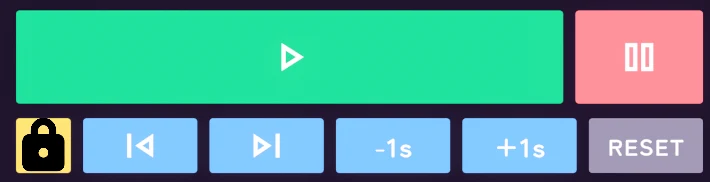
Pressing the 🔒️ button disables the features not used during the show (Next, Back, +1s / -1s, Reset). We recommend turning it on during the show to prevent accidents.
If things don't work as expected, see Troubleshooting.
We also take questions about the tools on the Mashiro Theater Discord server. Feel free to join!