Registering Presets
What Are Presets?
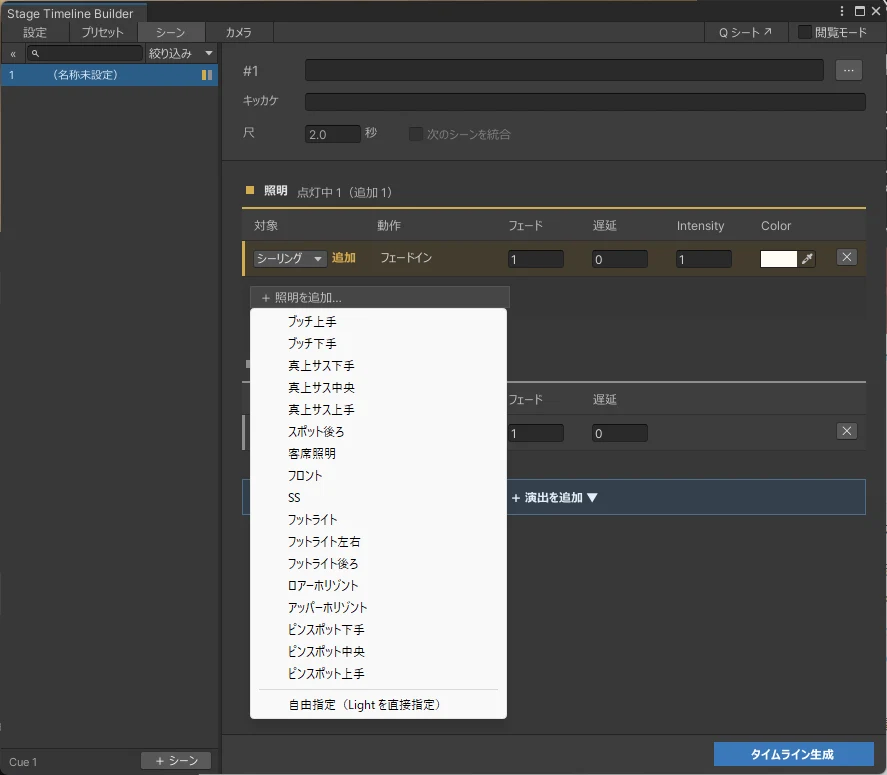
You can register lighting, sound, objects, and so on in advance as "presets." Registered presets can be selected from a list when editing scenes.
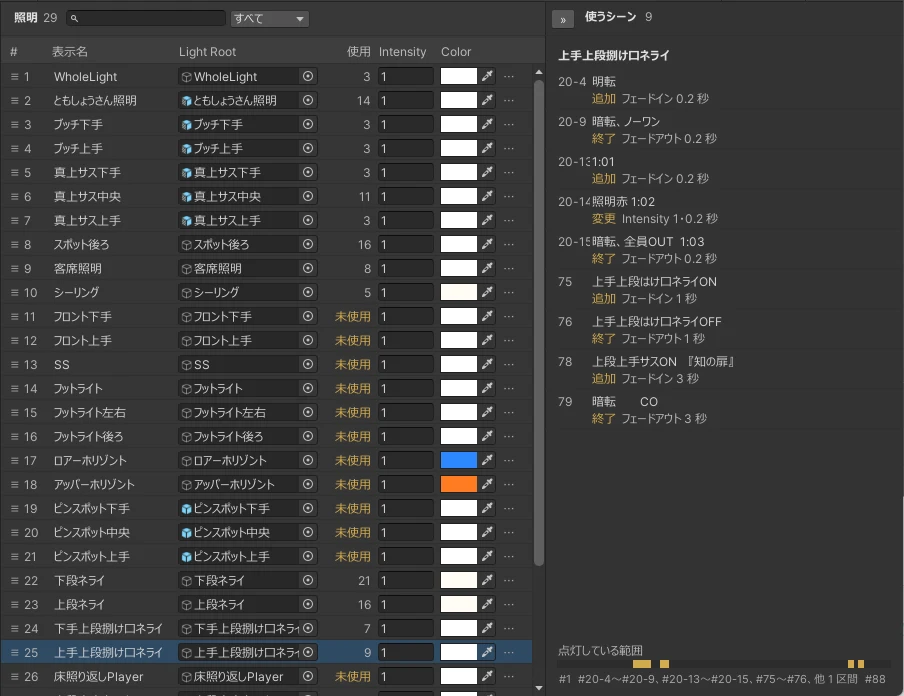
On the right side of the preset screen, you can see how many scenes use that preset. Click a scene to jump to it in the Scenes (「シーン」) tab.
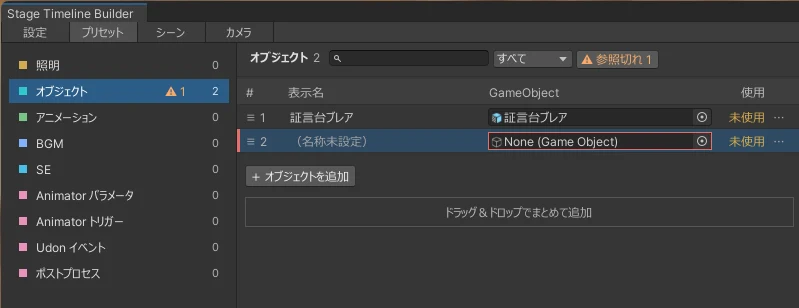
You can swap out the objects assigned to a preset later. When you edit a preset, the change applies to every scene that uses it.
What You Can Register
| Type | What to register |
|---|---|
| Lighting | Default intensity and color |
| Object | Objects to show or hide |
| Animation | Animation to play |
| BGM | Target AudioSource, default volume |
| SE | Target AudioSource, default volume |
| Animator Parameter * | Target Animator, Int parameter name, value options |
| Animator Trigger * | Target Animator, list of Triggers that can be sent |
| Udon Event * | Target UdonSharpBehaviour, list of functions that can be called |
| Post-processing * | Target Post-process Volume |
* Shown only when turned on under "Advanced Features" (「高度な機能」) in the Settings (「設定」) tab.
For details on each type, see Preset Types.
Basic Registration Steps
Open the Presets (「プリセット」) tab and choose a type from the list on the left.
Press the [+ Add ...] (「+ 〇〇を追加」) button to add a row, then drop in the target object. You can also register multiple objects at once by selecting them in the Hierarchy and dragging them onto the field below the table.
By default, the object's name is used as is. To change the name, double-click the display name and edit it.
We also take questions about the tools on the Mashiro Theater Discord server. Feel free to join!