
Creating Scenes
About Scenes
In the Timeline Builder, you build effects by dividing the performance into units called "scenes."
The Timeline stops automatically when it reaches the end of a scene, and the next scene starts when the operator presses the play button. When deciding on scenes, the basic approach is to split them at each "cue", the signal that moves the effects forward.
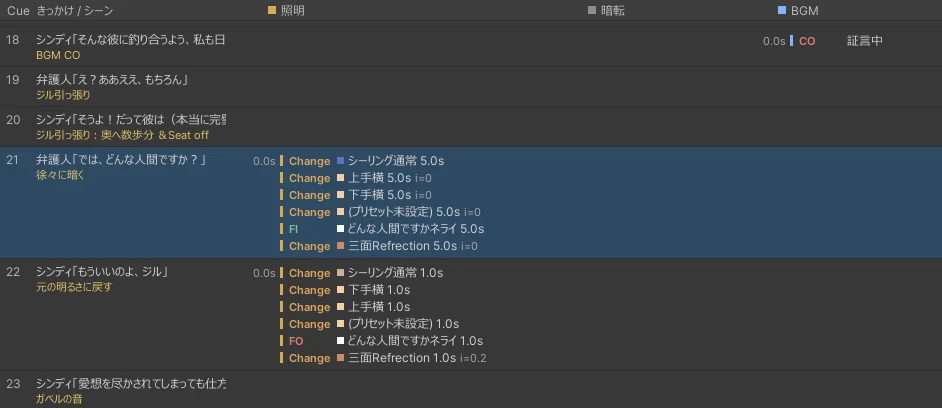
Tip
A table that lists cues and their corresponding effects is called a "cue sheet (Q-sheet)."
Adding Scenes
Open the Scenes (「シーン」) tab and press [+ Scene] (「+ シーン」) at the bottom right to add a scene to the end of the list. To add a scene between others, hover over the boundary between two rows in the list and press the [+] that appears.
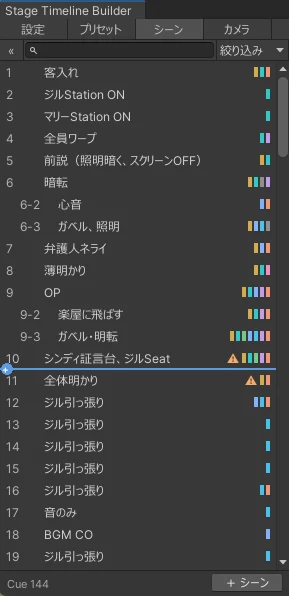
Right-click a row to duplicate or delete it, and drag a row to change the order.
Basic Scene Settings
Select a scene in the list to show its settings on the right.
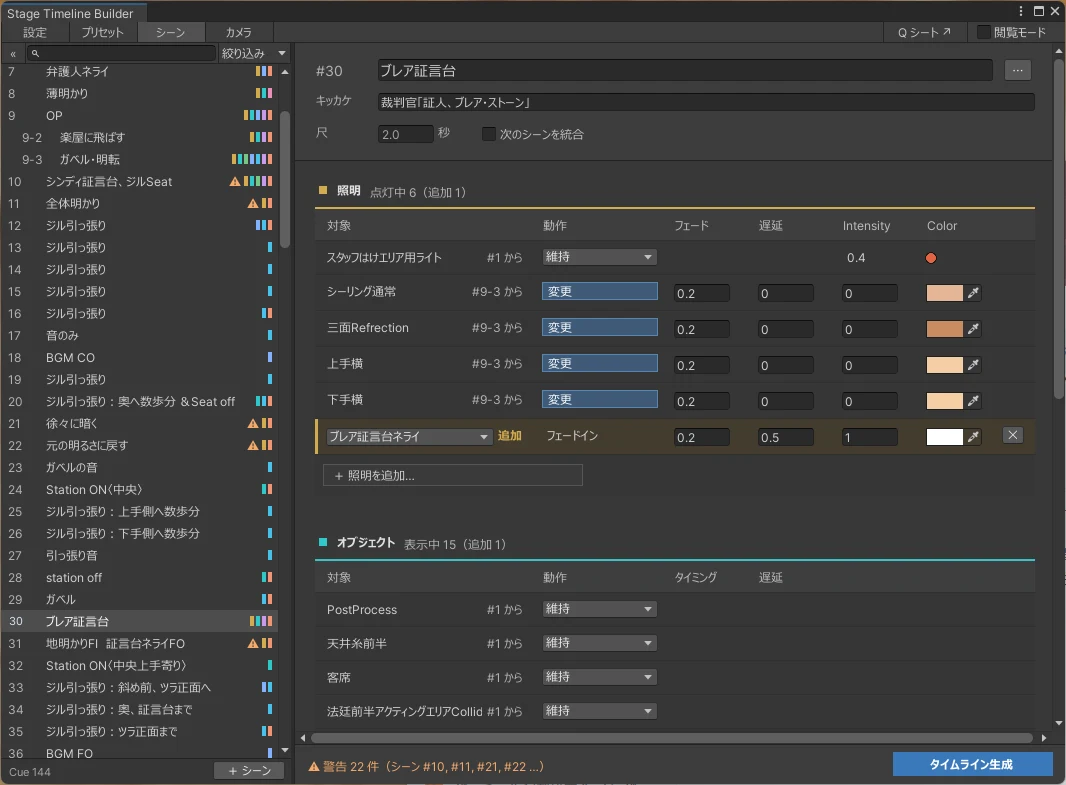
- Scene Name (「シーン名」): A display name that identifies the scene.
- Cue (「キッカケ」): The line or action that signals moving on to the next scene. What you enter here is shown on the operator's control panel.
- Duration (「尺」): The length of the scene in seconds. It is normally adjusted automatically, so you can leave it blank.
Next Steps
Once you've created scenes, add effects to them.
We also take questions about the tools on the Mashiro Theater Discord server. Feel free to join!